
Designed to keep you safe, supported and connected
SafeZone is the safety and wellbeing app that gives you fast, direct access to help whenever you need it on UCB’s campus, as well as the campuses of Aston University, Birmingham City University and the University of Birmingham, as part of the West Midlands Alliance.
It’s designed to keep you safe, supported and connected whether you’re studying, commuting between sites, working late or just moving around the University.
With SafeZone, you can quickly reach Emergency, First Aid, Help (non-emergency) or Wellbeing support. You can also Check In if you’re working alone and Send a Report if you spot something that doesn’t feel right.
It’s simple to use, always available, and helps our Campus Safety & Security team respond faster.
Download it, keep it on your home screen, and know that help is always just one tap away.
SafeZone is a free, location-based safety app
Download the SafeZone app to:
Contact UCB’s Campus Safety & Security team quickly and discreetly.
Request emergency, first aid or non-urgent assistance.
Get real-time notifications in the event of a crisis situation at UCB.
Access support from key partners and Emergency Services beyond campus.
Download through Google Play or App Store and use your UCB student email address and password to log in. Find out more about SafeZone and how it works.
Frequently asked questions (FAQs)
What can I use the app for?
Raise emergency alerts with the closest Campus Safety & Security team within the West Midlands Alliance.
Report non-urgent issues to the UCB Campus Safety & Security team, such as suspicious activity or theft.
Use the check-in features to share your location with the Campus Safety & Security team when on campus.
What happens when I raise an emergency alert?
When on UCB or a West Midlands Alliance campus: when you raise an Emergency alert, the closest Campus Safety & Security team receives your alert and your available location details. They will normally contact you by phone or text, if you have selected this option, to check that you are okay, understand what has happened, and arrange the appropriate assistance.
When off campus: SafeZone services can vary depending on your location. The app will provide information on the services available to you and may direct you to call Emergency Services (999).
Can I raise an emergency alert anonymously?
No. Emergency alerts can only be raised by registered users.
You can raise a Tip Report anonymously
What happens if I raise an alert by accident?
If you accidentally press any SafeZone alert button, you can cancel the alert by tapping the button again while the “timer” is winding down. After the alert has been sent, you can still cancel your request, but you will be contacted by the Campus Safety & Security team to ensure you are safe.
Please answer their call or message to confirm you are okay.
What is fall and crash detection?
Fall and crash detection provides additional reassurance if you are working alone or in a higher-risk environment. If a heavy impact or sudden fall is detected while you are checked in or using a Check-In Timer, SafeZone can automatically raise an Emergency alert.
This means an alert can still be raised if you are unable to use your phone. Your available location is shared with the Campus Safety & Security team so that assistance can be coordinated.
A compatible smartphone or V.ALRT Bluetooth wearable device is required.
What if I fall and can’t move properly or I am unconscious?
The app has fall and crash detection capabilities. As long as the automatic triggers are enabled on your device, they will issue an automatic alert to the Campus Safety & Security team to come and find you.
What is the check-in feature?
The SafeZone check-in feature allows you to share your location when working alone, studying late or entering higher-risk areas. It helps the Campus Safety & Security team to locate and assist you more quickly if support is needed.
The Check-In feature is available at all SafeZone Alliance locations if you have opted into the West Midlands Alliance agreement* within the app.
What is the check-in timer feature?
The Check-In Timer provides extra reassurance when working alone or undertaking higher-risk activities.
Simply set a timer for how long you expect your activity to take. SafeZone checks you in and shares your location while the timer is active.
Five minutes before the timer expires, you will receive a reminder. You can extend the timer if you need longer or check out safely when you have finished.
If the timer expires and you do not respond, SafeZone automatically raises an Emergency alert so the Campus Safety & Security team can check that you are safe.
Where possible, add your building, room and a brief description of what you are doing when setting the timer.
Can I request first aid through SafeZone?
Yes. Use the First Aid function if you need first aid assistance. Your available location is shared with the Campus Safety & Security team so that help can be coordinated.
If the situation is an emergency or there is an immediate risk to life, use the Emergency Alert function.
What if I have special support requirements?
If you have a physical disability, particular medical conditions or other specific special needs, you can add these to your profile in the app.
This means that when you call for assistance, the Campus Safety & Security team will be aware of any specific measures to help you safely and effectively.
The app is GDPR compliant.
What do I do if I want to report a non-emergency?
You can use the 'Report Something' or 'Non-Urgent' buttons on the home screen.
Can I use SafeZone when I am off campus?
University College Birmingham is a member of the West Midlands Alliance, a group of organisations that have partnered to provide mutual safety support to students and staff.
When you are within a West Midlands Alliance campus location, such as Aston University, Birmingham City University or University of Birmingham, your alert will be raised with the closest Campus Safety & Security team.
*For this feature to work, you must opt into the agreement within the app.
To do so, please follow the steps below:
Open the SafeZone app
Press the menu (hamburger) button
Press the "+Add Organisation”
Press the “SafeZone Alliance” button
Accept the terms and conditions to add the alliance options
SafeZone services can vary depending on your location. The app will provide information on the services available to you and may direct you to call Emergency Services (999).
What if I have no Wi-Fi or data?
If this happens, the app will try to send the alert as an encoded SMS. There will be steps on screen to help with this.
Can the SafeZone app track my location all the time?
No. It only shares your location when you use the Emergency, First Aid and Check in options. Currently, the SafeZone app is not synced to the What3Words location platform.
What mobile devices does SafeZone run on?
The app is available on iPhones (iOS v13+) and Android phones (Android v7+).
SafeZone Home Screen Functions
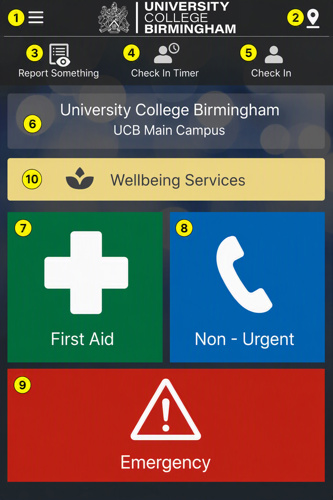
1. Hamburger Menu
Provides access to the main menu, settings, profile options, support information and additional SafeZone features.
2. Location Icon
Displays and updates your current location to help the Campus Safety & Security team, First Aiders or Emergency Responders locate you when assistance is requested.
3. Report Something
Allows users to submit security, safety, welfare or maintenance concerns directly through the app, including photos and location information.
4. Check In Timer
Enables lone working or welfare monitoring by starting a timed check-in period. If the timer expires without user confirmation, an alert can be escalated.
5. Check In
Lets users confirm they are safe and on campus. The Campus Safety & Security team can see active check-ins and provide support if required.
6. UCB Main Campus Information Banner
Displays the current campus, site information or announcements relevant to the user’s location.
7. First Aid
Provides rapid access to First Aid assistance. The request is routed to available First Aiders who can respond to the user's location.
8. Non-Urgent
Connects users with the Campus Safety & Security team for non-emergency assistance, advice, welfare support or reporting concerns that do not require an emergency response.
9. Emergency
Raises an immediate emergency alert to the Campus Safety & Security team, providing the user's location and enabling a rapid response to serious incidents or threats.
10. Wellbeing Services
Provides direct access to student wellbeing and support services, including mental health, welfare, counselling and student support resources.
Note: Out of hours or when off UCB campus, certain options may be disabled or changed to find the best available support.
SafeZone troubleshooting
I have a Samsung Galaxy and cannot enrol. What should I do?
Make sure your SafeZone app is up to date and that you are registering using your University College Birmingham email address.
If you are still having difficulty, please contact the Campus Safety & Security team for assistance.
I cannot find University College Birmingham when trying to enrol. What should I do?
Check that you are using your University College Birmingham email address and that your details have been entered correctly.
If you still cannot find University College Birmingham or receive a message saying there are no SafeZones available for your email address, please contact the Campus Safety & Security team for assistance.